
1 What is ChecklistBot
ChecklistBot keeps you accountable to a single, simple habit: decide what "trading well" means for you today, then honestly mark whether you did it. Each day you set a goal (for example, "No revenge trading after a stop-out"), and when your session closes the bot asks how it went. Stack good days and your streak grows; a failure resets it to zero.
It all happens inside Telegram:
- The bot sends you a prompt when your session opens and again when it closes, so logging takes one tap.
- The Mini App is a full screen for managing your goal, history, streak, and settings.
- In a group,
/checklistposts a shared snapshot so everyone can see how the group is doing today.
2 Getting started
Open a chat with the bot in Telegram and tap Start (or send /start).
The bot greets new users and points you at the menu button to open the app.
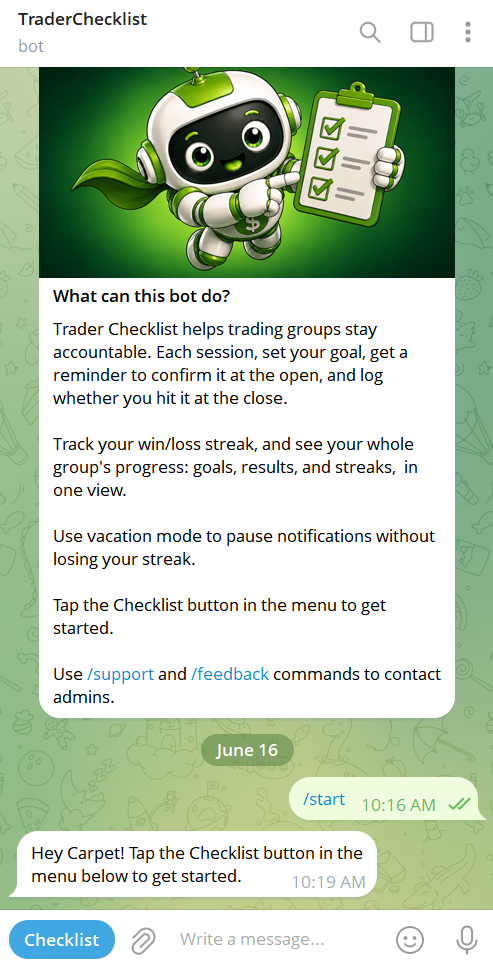
/start and the bot's welcome reply.Tap the Checklist button to launch the Mini App for the first time. This opens onboarding, where you set up your profile.
3 Setting yourself up
Onboarding is a short, four-step flow. Progress dots at the top show where you are.
Step 1: Your name
This is the name shown to others on the group checklist. It's pre-filled from your Telegram profile; tap to change it.
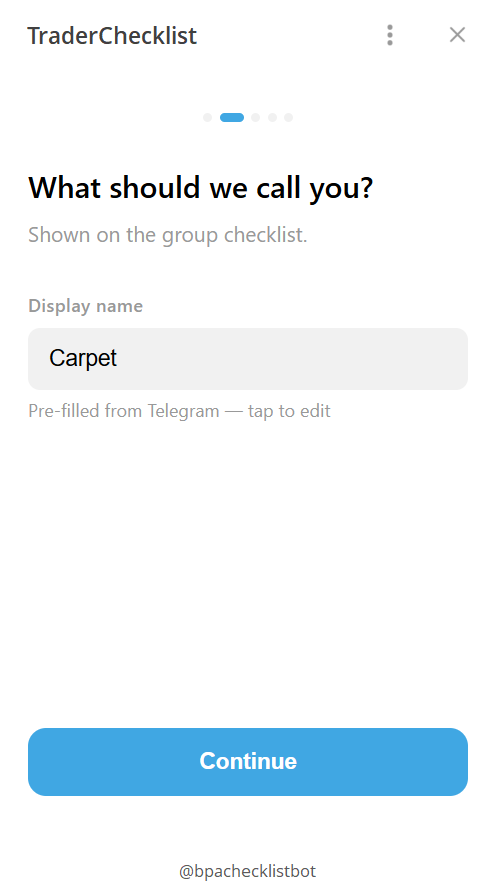
Step 2: Your timezone
Pick your timezone from the searchable list. All notification times use this timezone, and choosing one sets sensible default prompt times for your region.
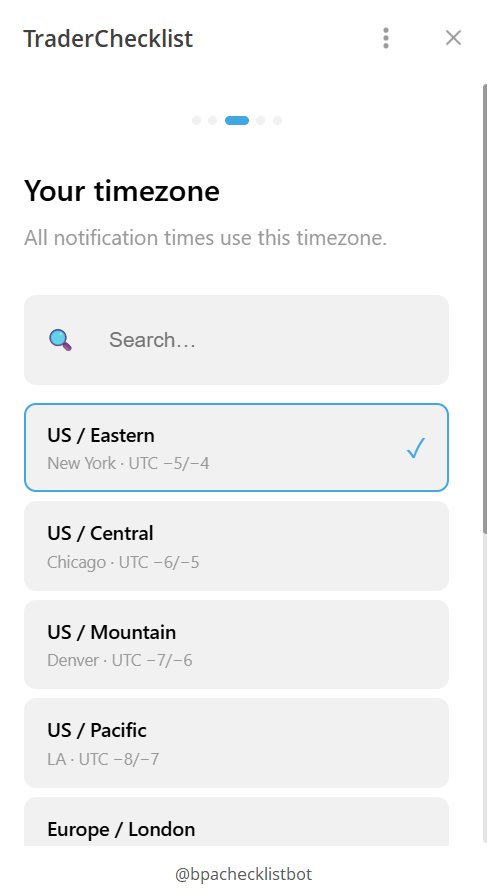
Step 3: Session & notifications
This is the main setup screen. Here you define your trading window and when the bot nudges you:
- Session preset: quick chips for
RTH,Overnight,AM only, orCustom. - Trading window: the exact open and close times.
- Active days: pick which weekdays the bot prompts you (defaults to Mon–Fri).
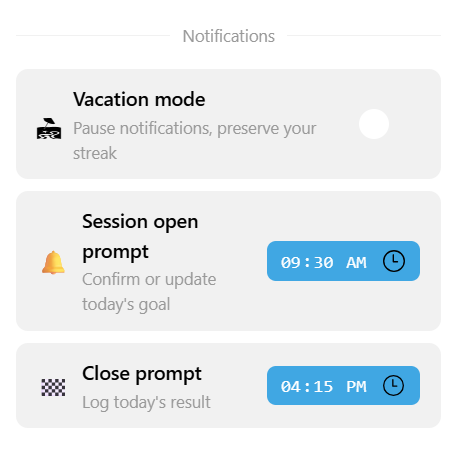
- Vacation mode: pause notifications while preserving your streak.
- Session open prompt: when to confirm or update today's goal.
- Close prompt: when to log today's result.
- Auto-confirm goal: if you don't reply to the open prompt, keep yesterday's goal automatically after a set number of minutes.
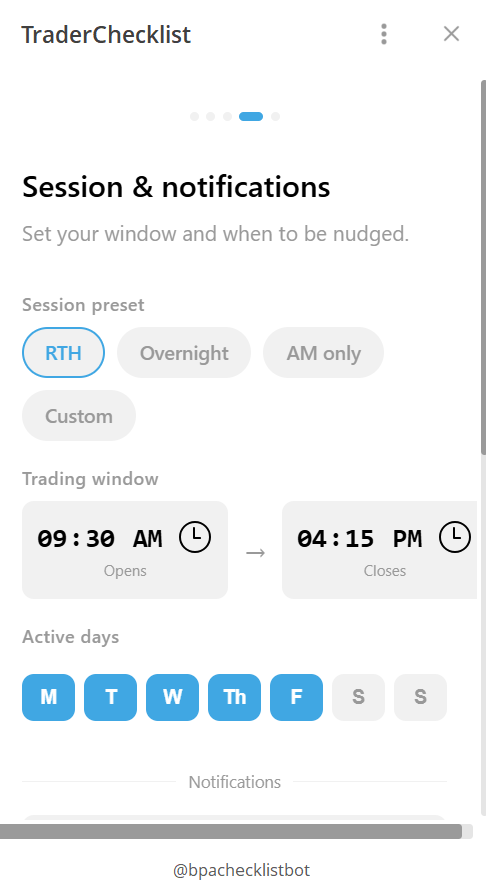
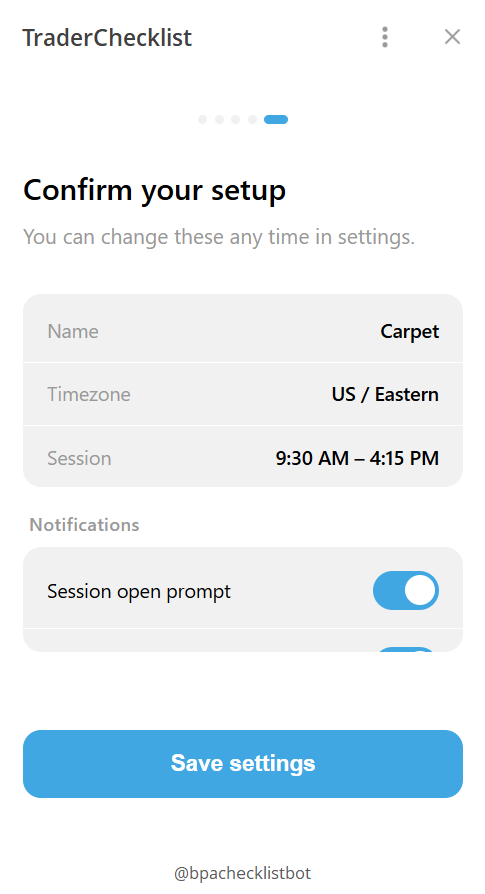
Step 4: Confirm
A summary of everything you chose. Review it and tap Start tracking. You can change any of it later from Settings.
4 Your daily checklist
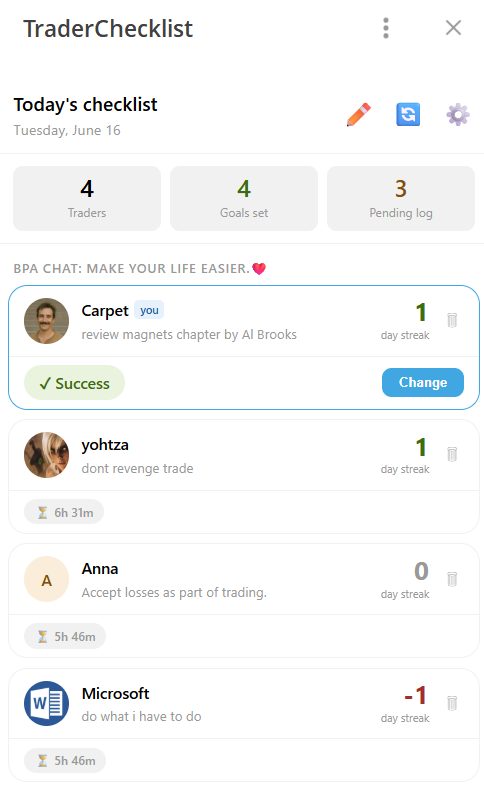
This is the home screen of the Mini App. At the top is a summary strip, below it the list of traders. Your own card is highlighted with a blue border and a "you" badge, and is sorted to the top; everyone else is ordered by streak.
- Traders: how many people are on this checklist.
- Goals set: how many have confirmed today's goal.
- Pending log: how many still need to log a result.
Each card shows the trader's avatar, name, today's goal, and their current day-streak. The header icons let you ✏️ edit your goal, 🔄 refresh, and open ⚙️ settings.
What the status pills mean
| ⏳ 2h 15m | Goal confirmed, result not logged yet. Shows time left in your session, then "Pending" once it closes. |
| ✓ Success | You logged the day as achieved and your streak went up. |
| ✗ Failed | You logged a failure, so your streak reset to 0. |
| ⊘ No trades | You didn't trade. Your streak is unchanged. |
| 🏖 Vacation | Notifications paused; your streak is preserved. |
5 Setting & changing goals
There are three ways to set today's goal.
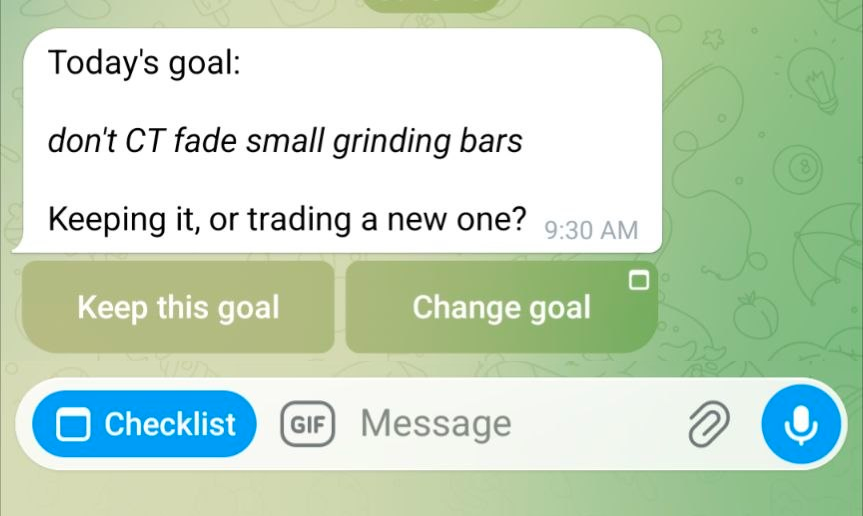
A. The morning prompt
At your session-open time the bot messages you with yesterday's goal and two buttons: Keep this goal or Change goal. Keeping it confirms today's goal in one tap; changing it opens the Mini App straight to the goal editor.
B. The /goal command
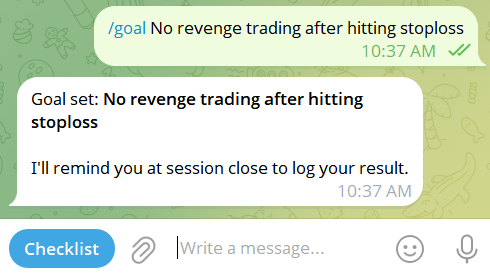
Set or replace today's goal directly from chat without opening the app:
/goal No revenge trading after a stop-out
The bot confirms the goal and reminds you it'll prompt for the result at session close.
C. The goal editor (Mini App)
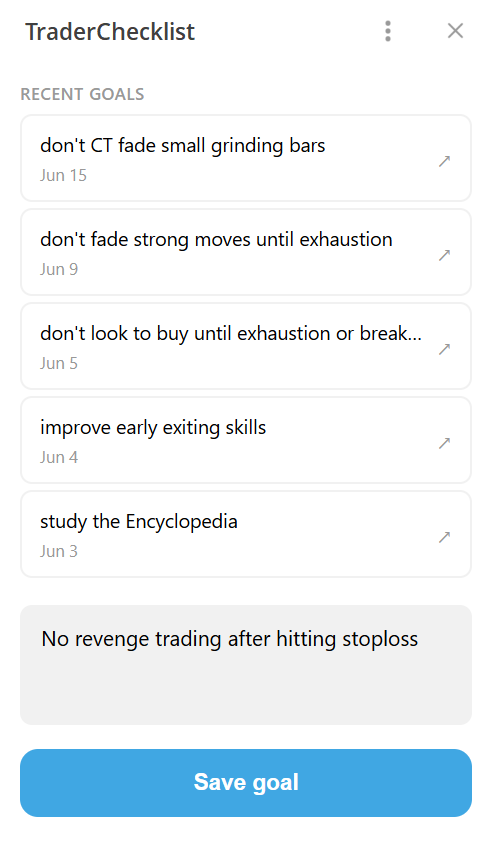
Tap the ✏️ icon on the checklist to open the goal sheet. Type a new goal, or tap one of your recent goals to reuse it, then Save goal.
6 Logging your result
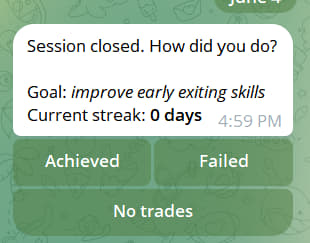
When your session closes the bot asks how you did, showing today's goal and your current streak. Tap Achieved, Failed, or No trades.
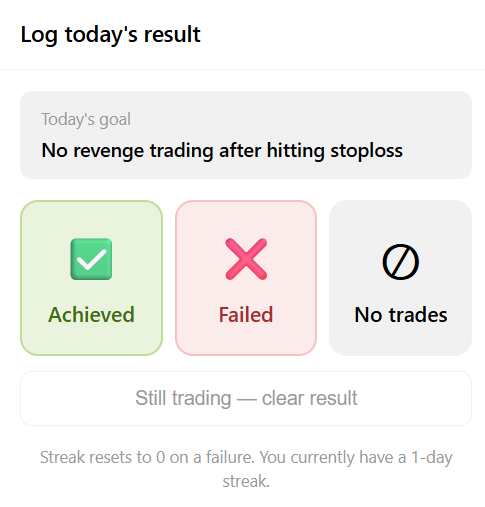
You can also log from the Mini App: tap Log result on your card to open the result sheet with the same three options.
How streaks work
- Achieved adds a day to your streak. 🔥
- Failed resets your streak to 0. Fresh start tomorrow.
- No trades leaves your streak exactly where it was.
See Streaks below for how targets, cycles, and awards work.
7 Streaks
Your streak counts how many days in a row you've hit your goal. Trade well and it climbs. Log a failed day and it goes back to zero. After a while it becomes the first number you check, because it tells you in one glance whether your discipline is holding up.
The basics
- Achieved adds a day to your streak. 🔥
- Failed resets your streak to 0. Fresh start tomorrow.
- No trades leaves your streak where it was. A day off costs you nothing.
- Vacation mode pauses prompts and keeps your streak safe (see Settings).
Streak targets & cycles
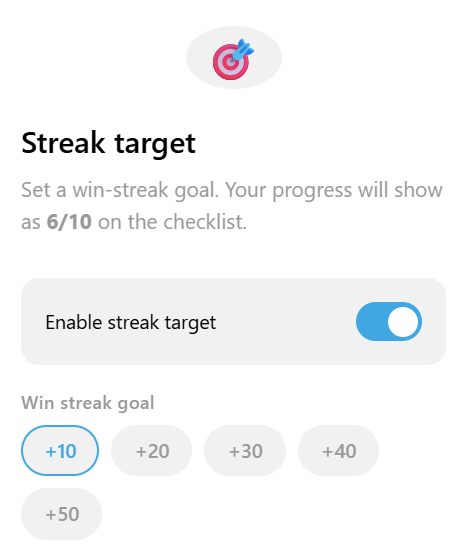
If an ever-growing number doesn't motivate you, turn on a streak target during onboarding or later in Settings. Say you pick 10 days: when you hit 10, the app marks the milestone and your displayed streak starts over at 1 for the next cycle. A run of 10 is something you can actually finish, and each completed cycle is a win you get to keep.
Award stars
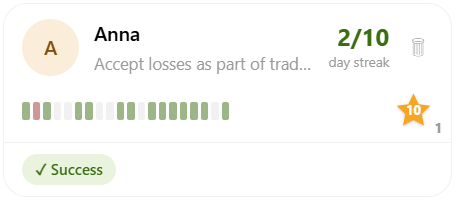
Each time you complete a cycle (your displayed streak lands exactly on the target) you earn an award star. Stars stay on your trader card for good, and completing the same target again adds a small count to the star instead of a second one. So the checklist shows both where you are today and every milestone you've hit before.
History bar
Trader cards also show a row of small colored bars covering your last 20 logged days: green for achieved, red for failed, grey for no trades. Handy for spotting patterns, like a habit of red Mondays, without digging through your history.

8 Using it in a group
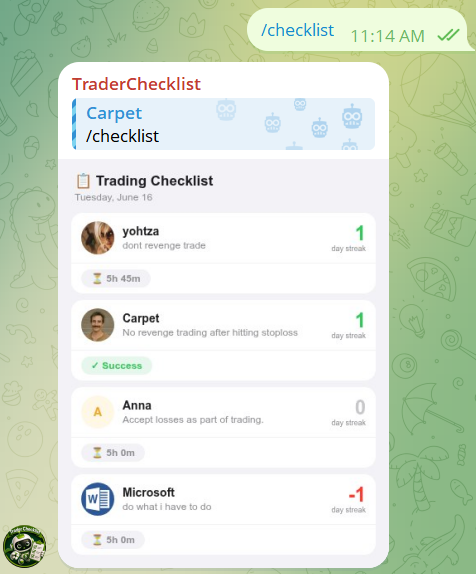
Add ChecklistBot to a Telegram group and run /checklist. The bot posts a clean
image snapshot of everyone's goals, results, and streaks for today. Handy for keeping a
trading desk or accountability group honest.
/checklist snapshot posted to a group./checklist in a group the bot is in to see other traders who use it. Dismiss it with the ✕.
9 Settings & vacation mode
Tap the ⚙️ icon on the checklist to reopen the setup flow with your current values pre-filled. Change your name, timezone, session window, active days, prompt times, or auto-confirm, then tap Save settings.
Vacation mode
Flip the Vacation mode toggle to pause the morning and close prompts while preserving your streak. On the checklist your card shows a 🏖 Vacation pill so others know you're away. Turn it off when you're back to resume notifications.
10 Getting help
Two commands route a message straight to the bot's admins, who reply right back inside your chat:
/support your messageto report a problem, e.g./support I can't change my timezone/feedback your messageto share a suggestion, e.g./feedback It would be helpful if…
After an admin replies you can keep chatting normally. Your follow-up messages continue the same support thread. If you ever send a plain message when you're not sure what to do, the bot shows a short menu of what it can help with.